Master List: fields, actions, stage pill
What you’ll learn
How to use the Master List as your command center — what each field means, what the actions do, and how the stage pill works.
What the Master List is
The Master List is the home for every product idea in your workspace.
It’s designed for one job:
Let you see all ideas at a glance and decide what to work on next.
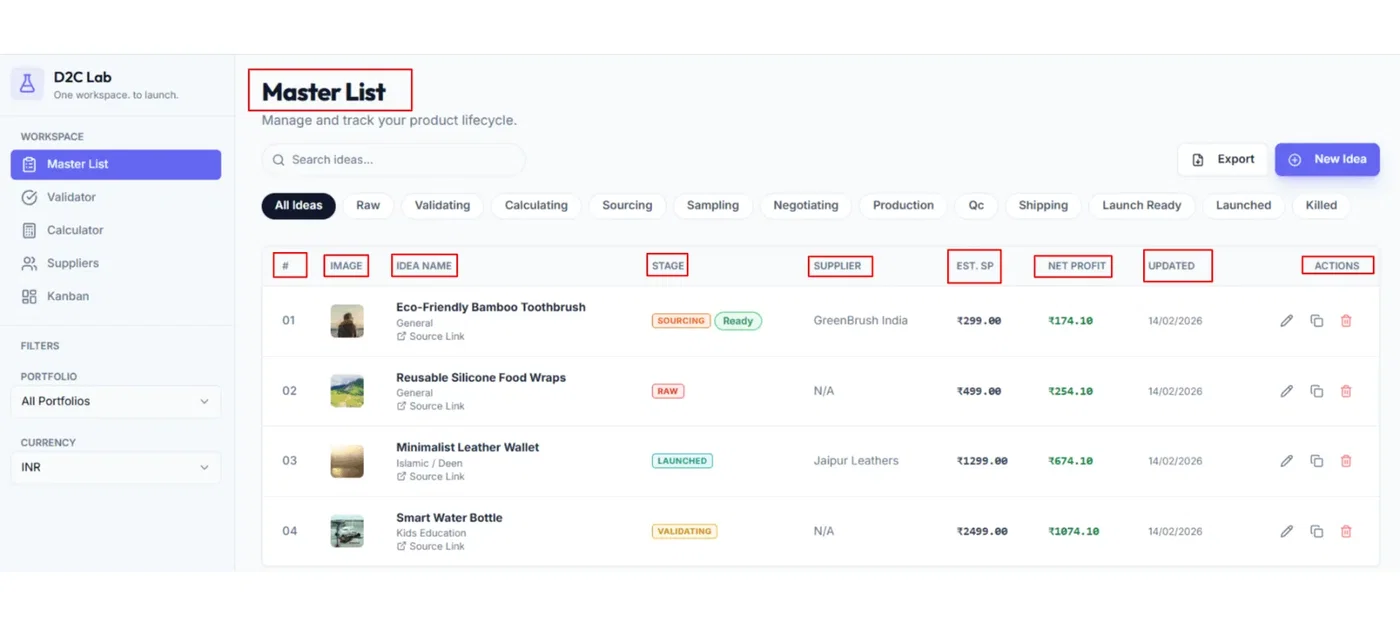
What you’ll see in the Master List (fields)
These are the core fields shown for each idea:
1) Serial number
A simple index so it’s easy to reference an idea quickly.
2) Image
A quick visual of the idea so you can scan your list faster.
3) Idea name
The title of your product idea.
Tip: Keep naming consistent (product type + key variation).
4) Stage (stage pill)
A small colored pill that shows the current stage of the idea.
It uses:
a light tinted background,
a stronger border,
readable text color.
Stages are unified across the app:
Raw, Validating, Calculating, Sourcing, Sampling, Negotiating, Production, QC, Shipping, Launch Ready, Launched, Killed.
5) Selling price
Your planned selling price.
6) Net profit
Your per-unit net profit from the Calculator.
Important:
Net profit updates when you change and save Calculator inputs.
Clicking Net Profit can take you directly to that product’s Calculator card.
7) Supplier
Shows the supplier name (when available).
Tip:
Clicking the supplier name navigates to that supplier’s details.
8) Updated date
The last time the idea was updated.
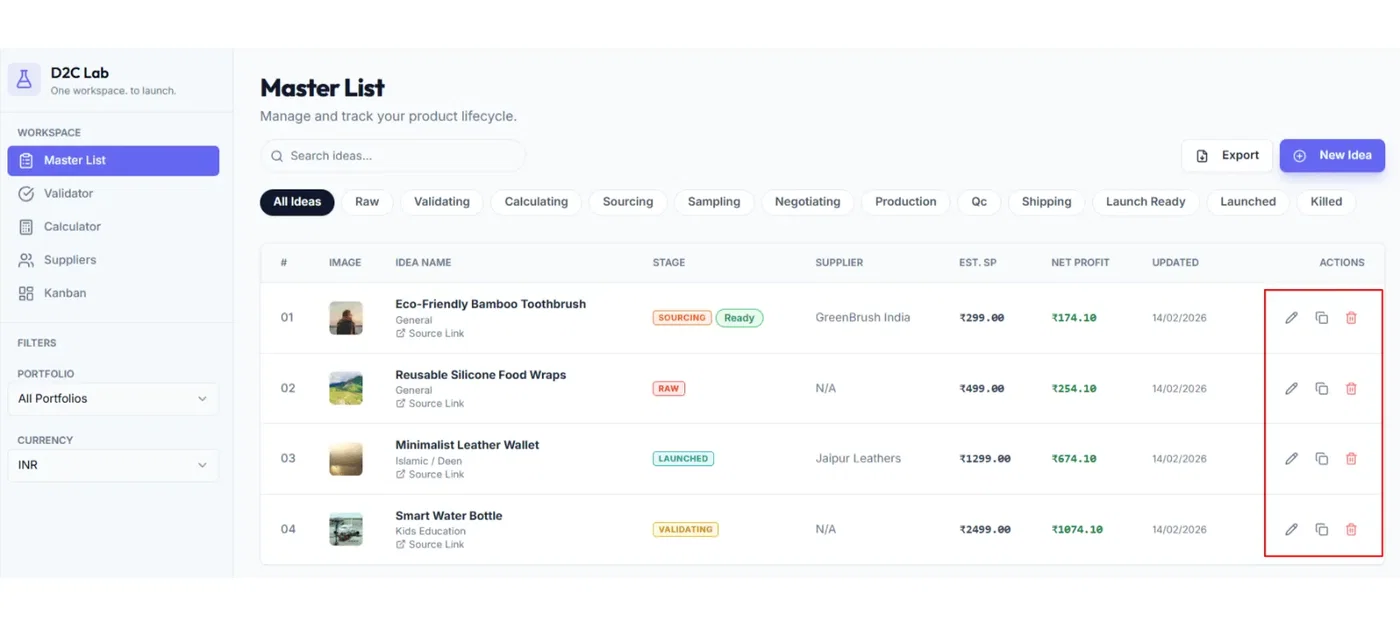
Actions (what the buttons do)
Each idea has quick actions:
Edit (pencil)
Opens the edit popup where you can update:
idea name
selling price
product URL
image
stage (dropdown)
notes
portfolio
Duplicate
Creates a copy of the idea so you can test variations.
Delete
Deletes the idea.
Tip: If you just want to pause an idea without deleting, use Kill in Validator (stage becomes Killed).
How the stage pill changes
Stage can change in a few common ways:
Starting checklist activity moves Raw → Validating
Working in Calculator supports Calculating
Adding a supplier contact triggers Kanban and starts at Sourcing
Dragging cards in Kanban updates stages through execution
“Ready for launch” sets Launch Ready
Killing an idea sets Killed
Mobile view (quick note)
On mobile, the Master List shows ideas as cards and highlights the most important fields.
Best practices
Use Master List to shortlist ideas based on stage + net profit.
Keep idea names consistent so duplicates and variants are easy to spot.
Don’t delete ideas unless you’re sure — use Killed for “not now.”
Related articles
Master List: edit, duplicate, delete
Master List: supplier link + profit link behavior
Stages explained (Raw → Launched + Killed)
Model profitability (Calculator)