Move through production stages (Kanban)
What you’ll learn
How to use the Kanban board to track a product from Sourcing → Launched, what each stage means, and how moving cards updates the product stage across D2C Lab.
What the Kanban board is
Kanban is your execution tracker.
Once you start supplier work, Kanban gives you a simple pipeline so you always know:
what stage each product is in,
what’s next,
what’s stuck.
When Kanban starts
Kanban starts automatically.
Rule: A Kanban card is created as soon as any supplier contact is added to a product.
The card is created and placed in Sourcing.
The Kanban stages (columns)
Your production pipeline is:
Sourcing
Sampling
Negotiating
Production
QC
Shipping
Launched
What each stage means
1) Sourcing
You’re collecting supplier options, getting quotes, and shortlisting.
Typical actions:
add suppliers
request quotes
compare suppliers
2) Sampling
You’re requesting and reviewing samples.
Typical actions:
test quality
confirm key features
refine requirements
3) Negotiating
You’re finalizing the deal.
Typical actions:
finalize price
confirm MOQ
confirm lead time and incoterms
lock payment terms
4) Production
Manufacturing is in progress.
Typical actions:
monitor timelines
confirm packaging
track production updates
5) QC
Quality checks are happening.
Typical actions:
inspection
defect checks
approvals before dispatch
6) Shipping
Goods are in transit.
Typical actions:
track shipment
prep inbound plan
prep listing assets and launch tasks
7) Launched
The product is launched and complete in the pipeline.
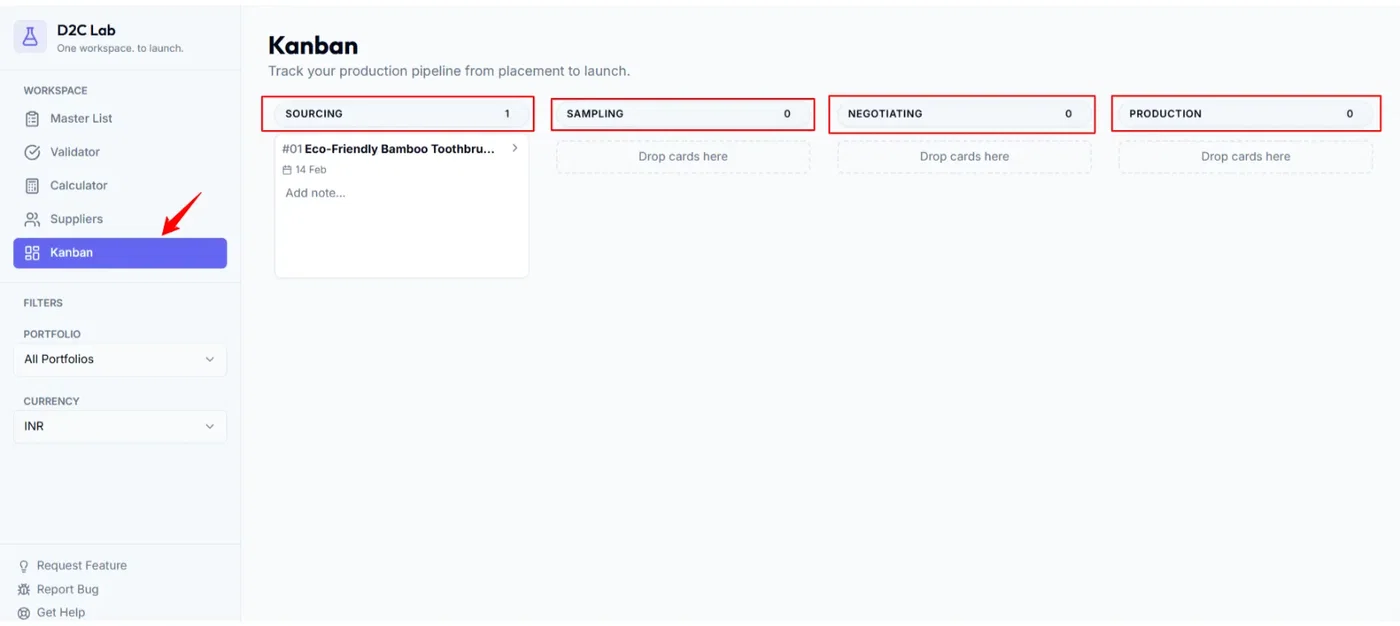
Moving a card (drag-and-drop)
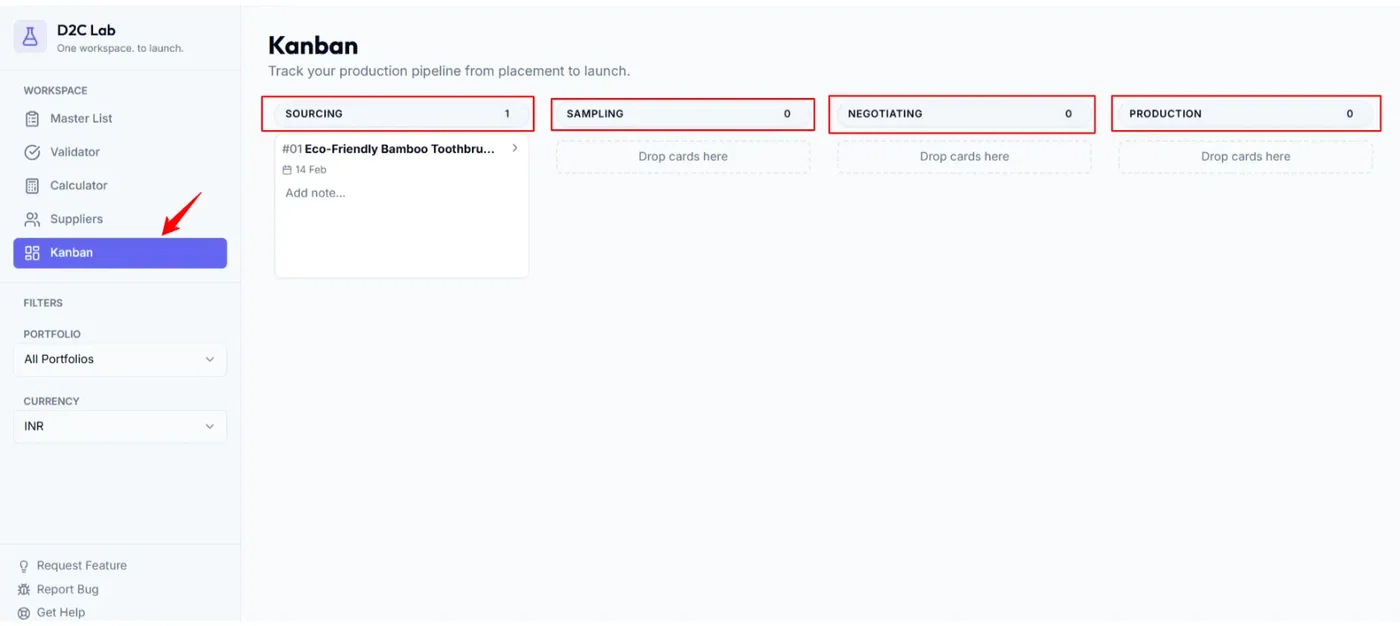
Step 1 — Open Kanban
Go to the Kanban tab.
Step 2 — Drag the product card
Drag the card from its current column to the next column.
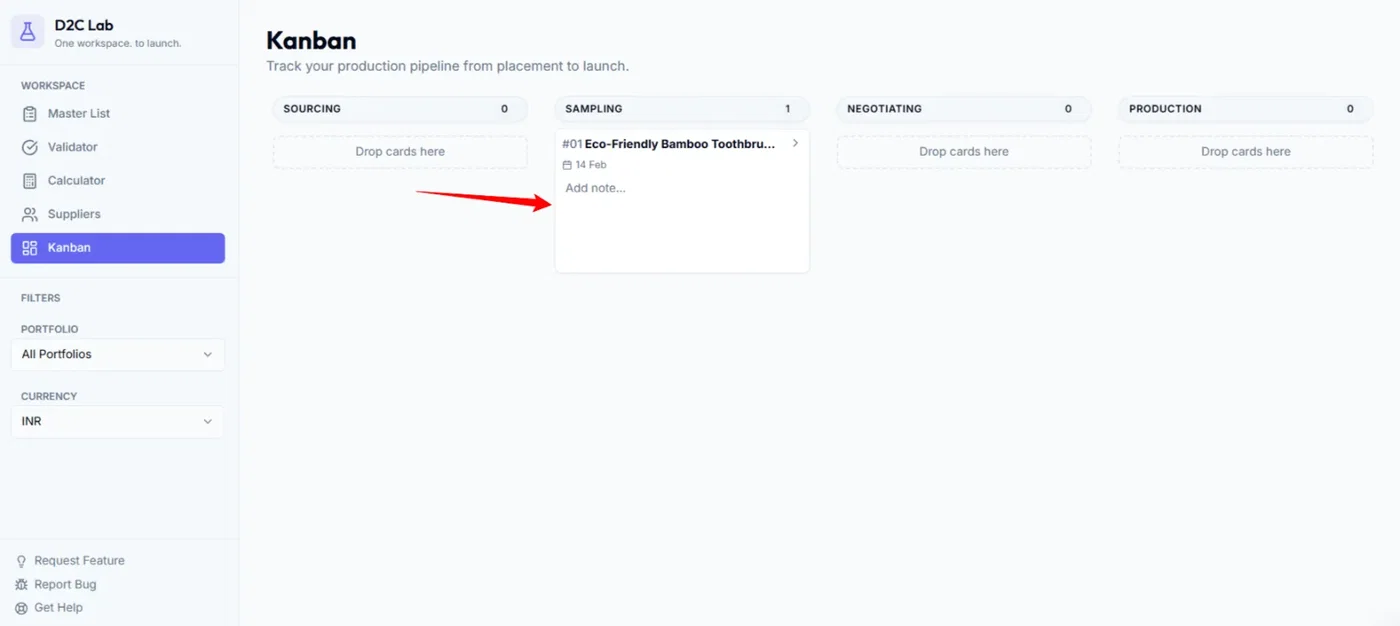
Step 3 — Stage sync happens automatically
When you move a card:
the product’s stage updates in the Master List
your workspace stays aligned (one source of truth)
Moving a card backwards
If something changes (sample failed, QC issues, etc.), you can move a card back to an earlier column.
Moving a card backwards should also revert the stage appropriately.
(See the related article on reverting stages.)
Opening the card details
Clicking a Kanban card opens a detailed modal (details panel), where you can typically:
view the title + stage
review checklist progress
see a history/timeline
edit notes
Use this modal to keep execution notes in one place.
Best practices
Only move a card when a real milestone is done (keeps the board meaningful).
Use notes to track key decisions (quote changes, sample feedback, shipping dates).
Review the Kanban board weekly to unblock stuck items.
Related articles
How Kanban starts automatically (supplier contact rule)
Reverting stages (moving a card backwards)
Kanban: columns and what each means
Kanban: card modal (history timeline + notes)