Model profitability (Calculator)
What you’ll learn
How to use the Calculator to model unit economics, understand the live breakdown, and keep Net Profit updated in your Master List.
What the Calculator is
The Calculator is where you answer the most important question:
“If I sell this product, how much do I actually make per unit?”
It’s designed to:
help you test different prices and costs,
show a clear cost/profit breakdown,
push the final Net Profit back to your Master List so you can compare ideas.
Where to find it
Go to the Calculator tab.
Each product has its own calculator card.
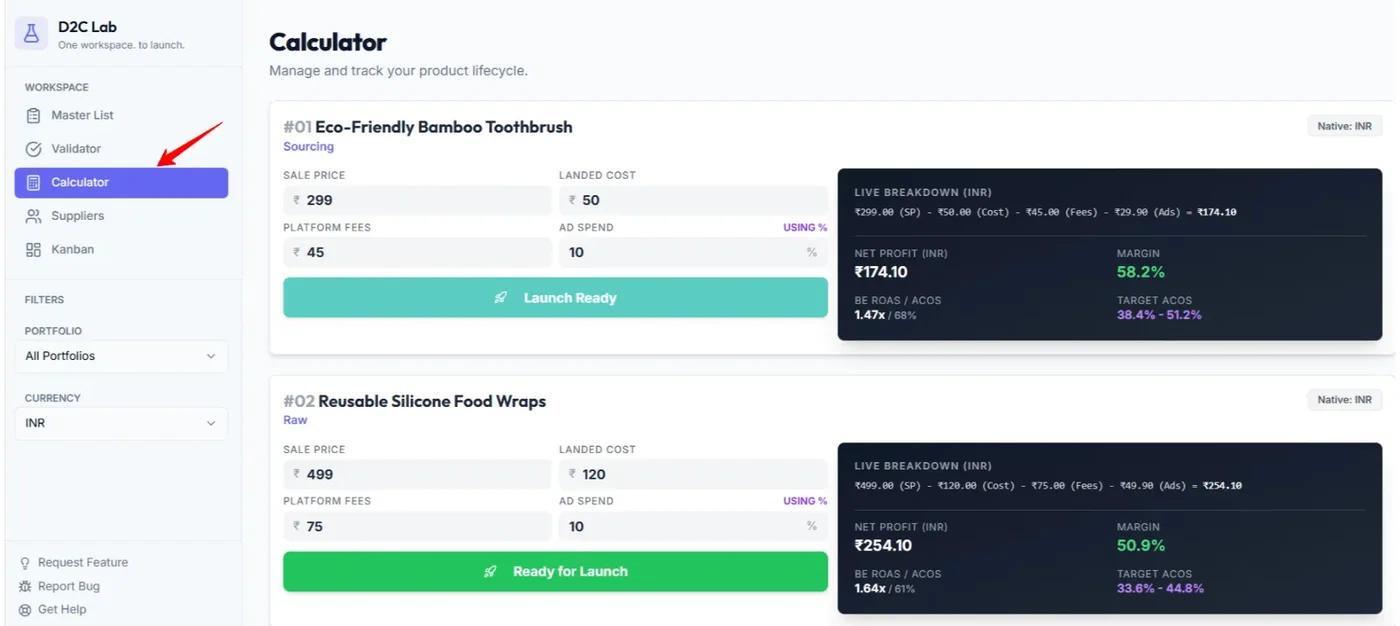
How the Calculator screen is laid out
The calculator card is split into two parts:
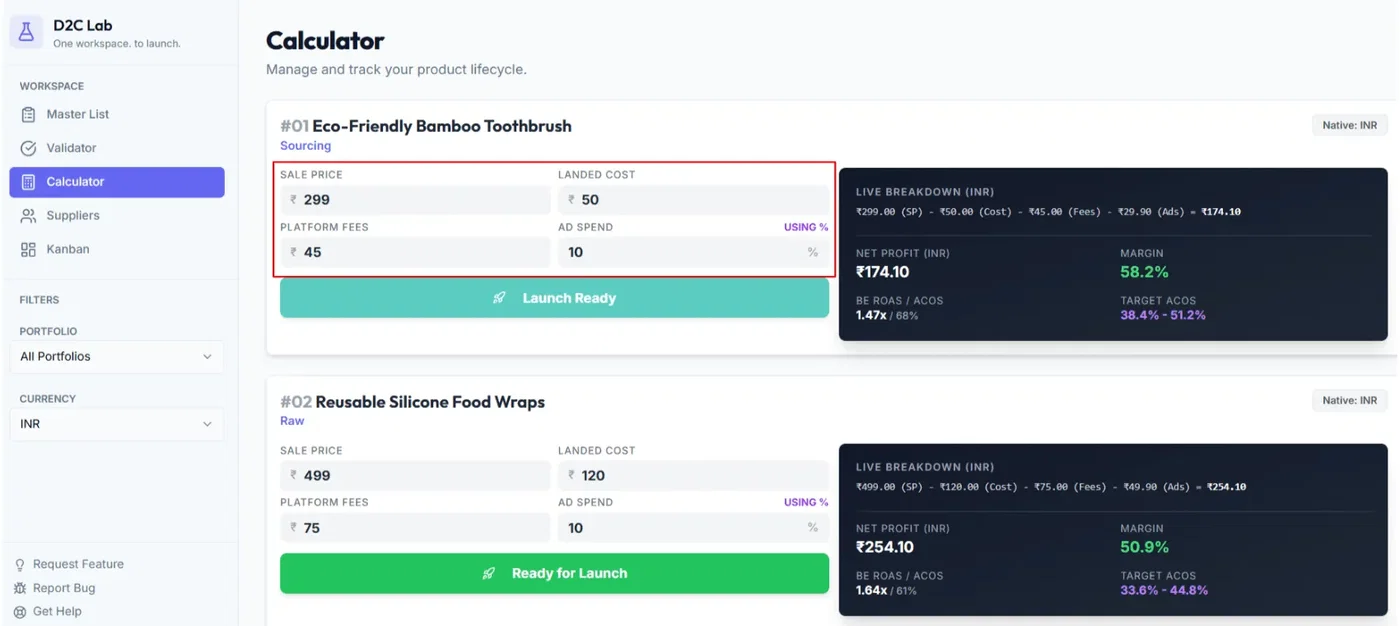
Inputs (left): where you enter your numbers
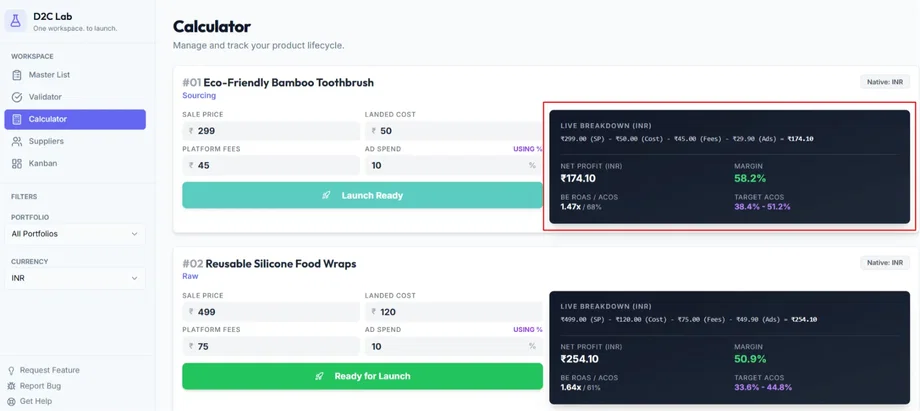
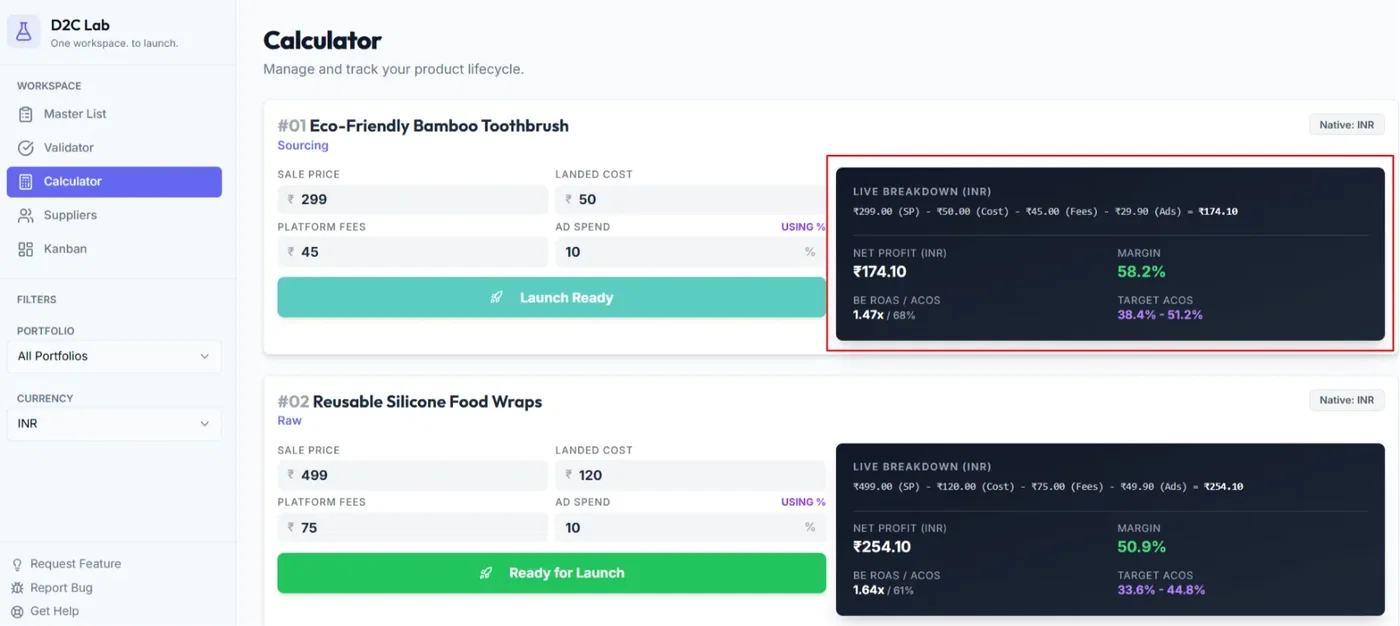
Live breakdown (right): where you see totals and net profit update
Tip: Inputs are left-aligned so you can type quickly without losing focus.
Model profitability (step-by-step)
Step 1 — Select the product
Open the calculator card for the idea you want to evaluate.
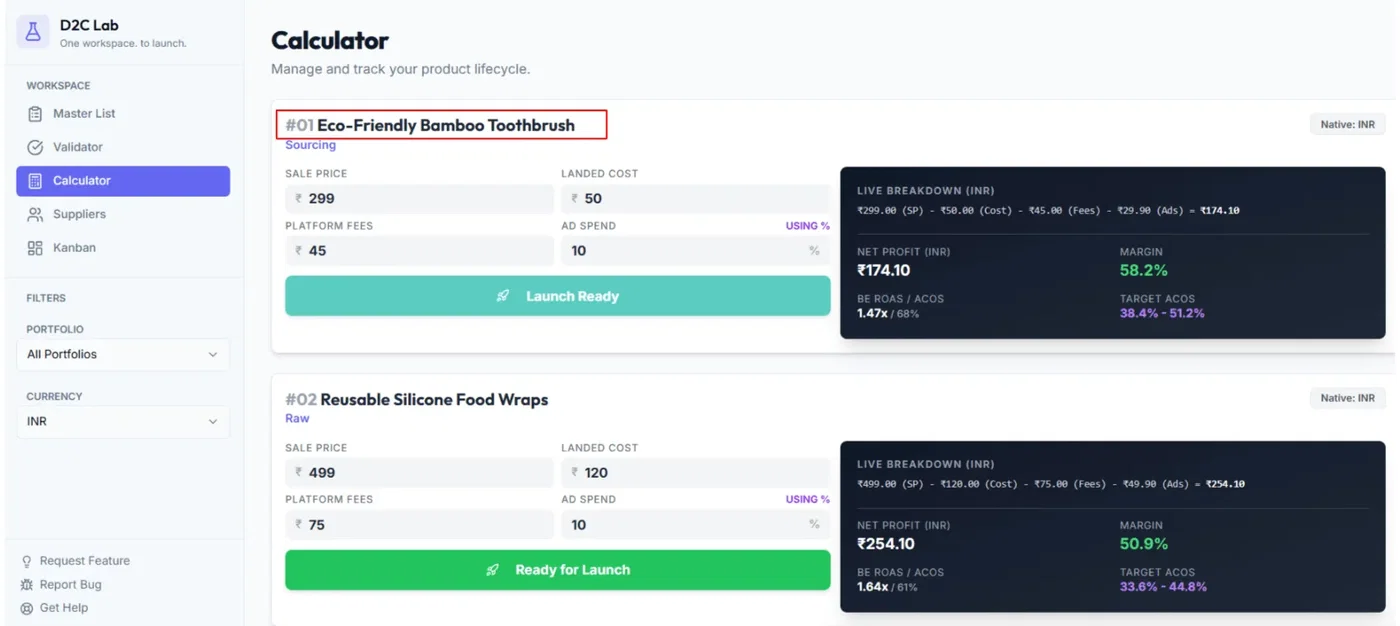
Step 2 — Enter your selling price
Use your intended selling price. If you’re not sure yet, start with your best estimate.
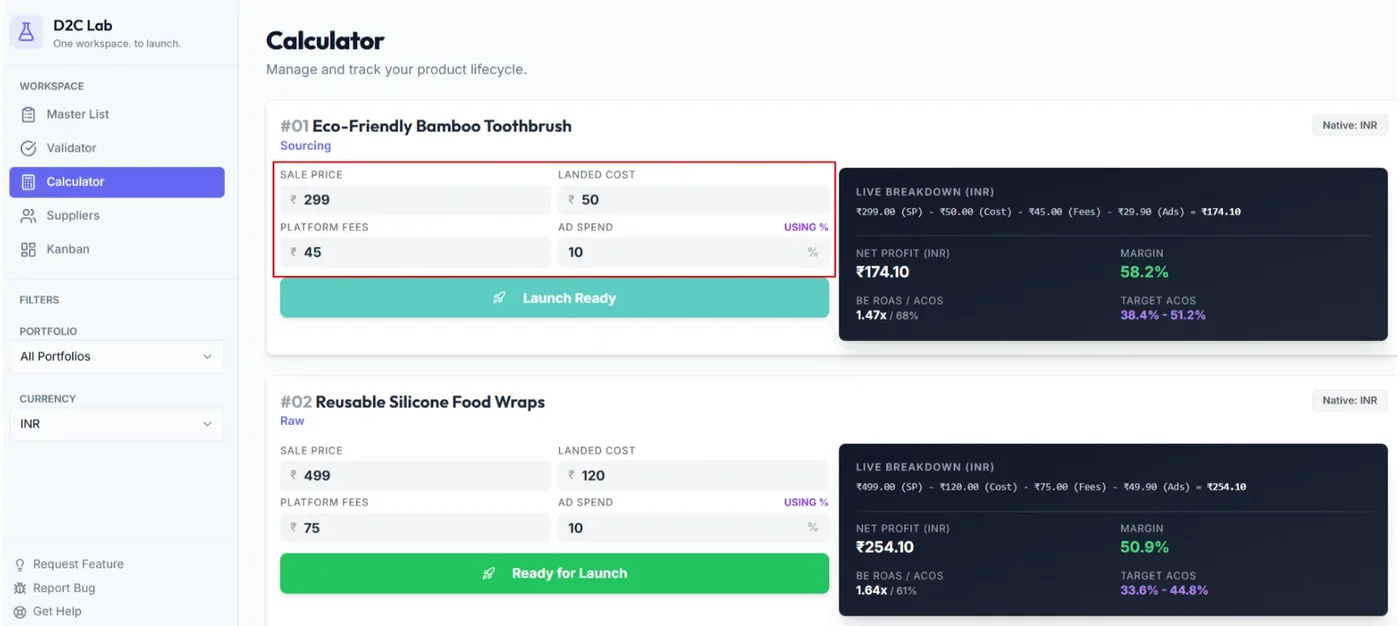
Step 3 — Enter your costs
Add the costs you know now, and estimate what you don’t know yet.
Common cost types:
unit cost (supplier)
packaging cost
shipping/landed cost per unit
platform/marketplace fees
marketing cost per unit (ads/promo)
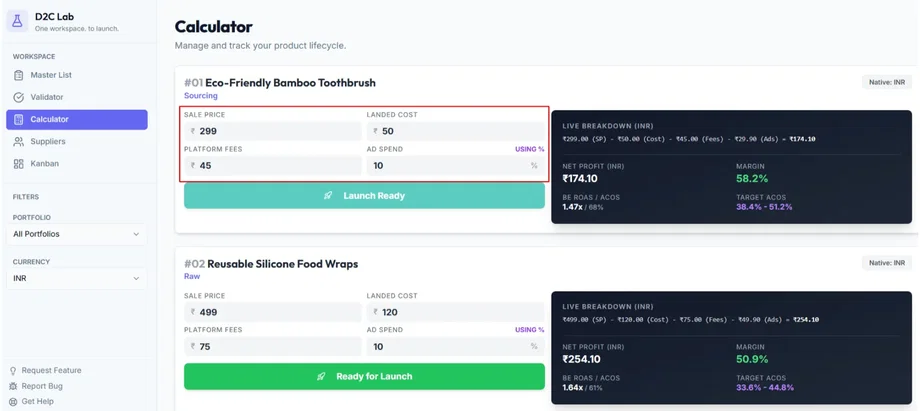
Step 4 — Review the live breakdown
As you enter numbers, the breakdown updates:
total cost per unit
profit numbers
net margin
Step 5 — Adjust until it makes sense
Try simple “what-if” tests:
What if selling price goes up/down?
What if supplier cost is higher than expected?
What if you include a realistic marketing cost?
Step 6 — Save and confirm Master List updates
Once saved, Net Profit updates back in your Master List.
Net Profit vs margin (quick clarity)
Net Profit = selling price − all costs (what you make per unit)
Net Margin = net profit ÷ selling price (percentage)
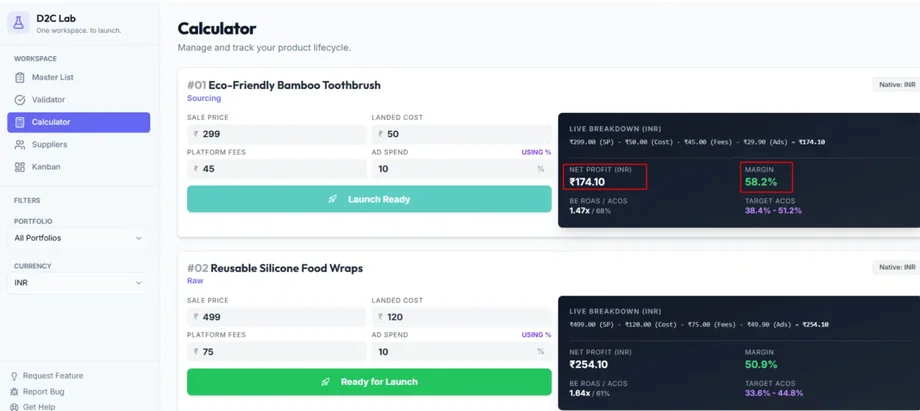
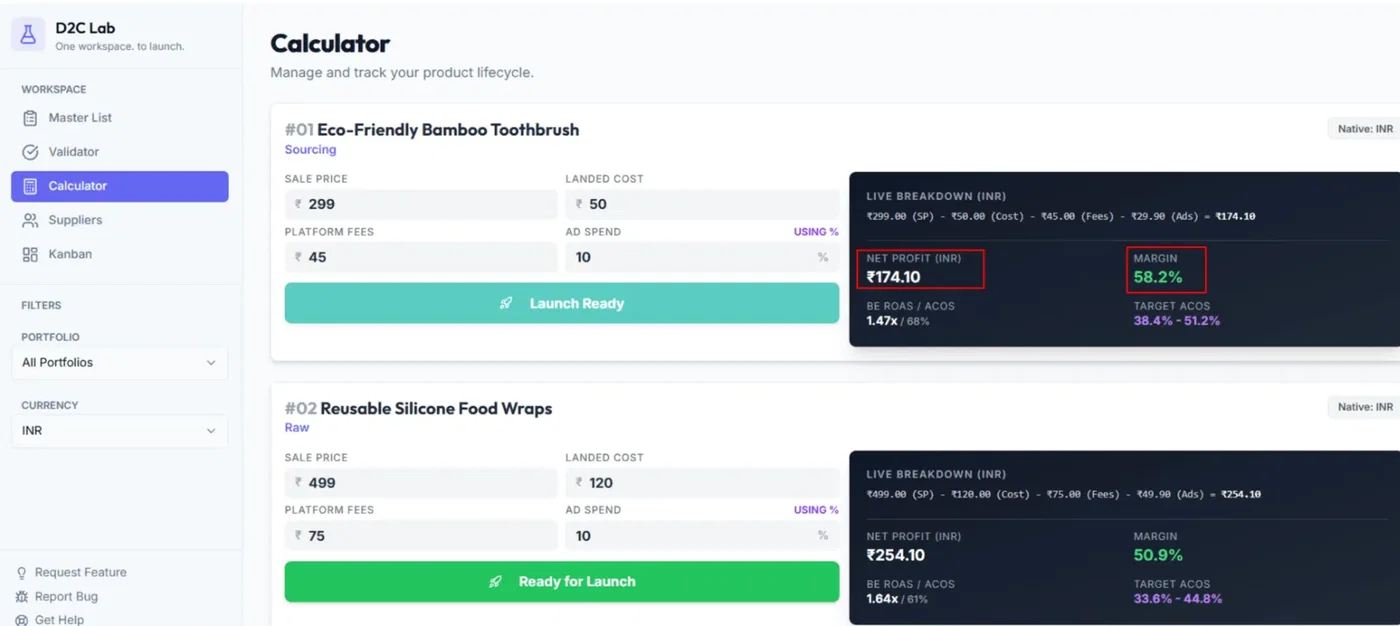
Use Net Profit in Master List to compare ideas quickly.
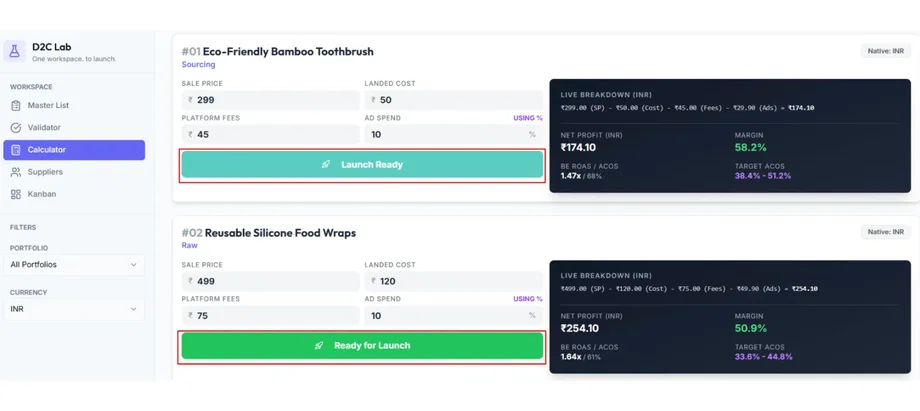
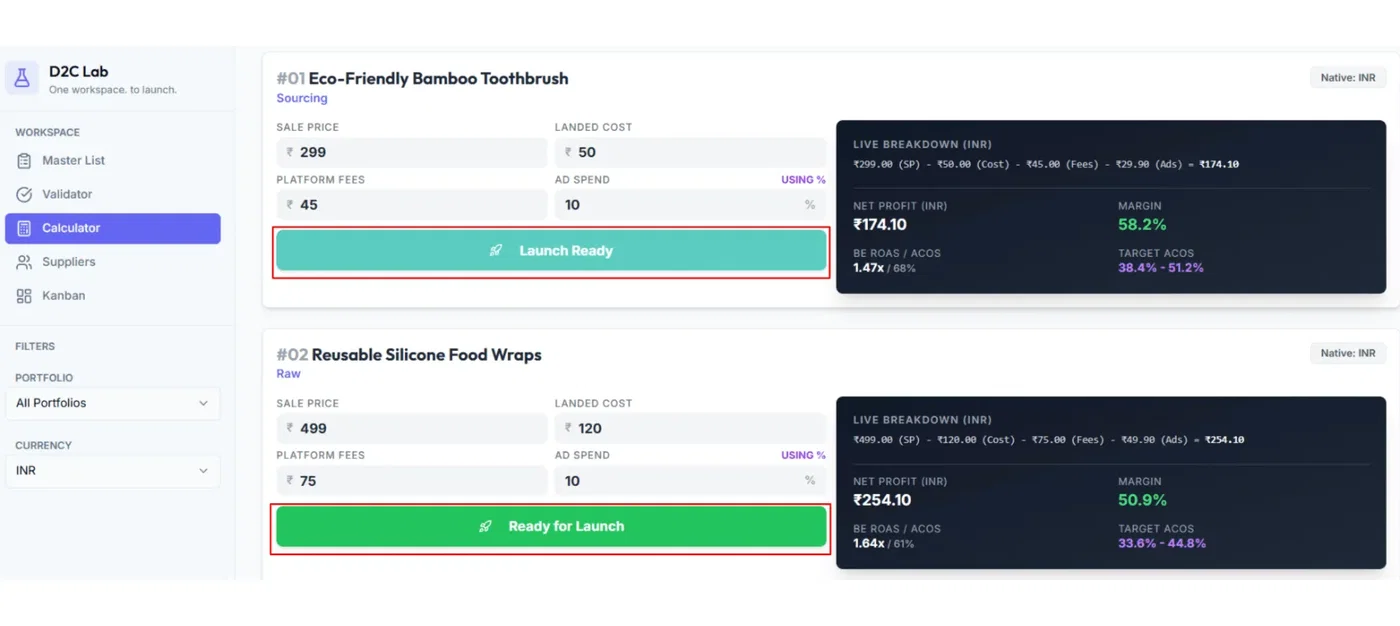
“Ready for launch” (what it does)
If your margins look good and you’re ready to proceed:
Clicking Ready for launch sets the stage to Launch Ready.
Important:
It does not automatically move the Kanban column.
Best practices (so your numbers stay realistic)
Always include a marketing cost per unit (even a small number) so profit isn’t overstated.
If you’re early, start with estimates and refine after supplier quotes.
Use the Calculator to compare multiple ideas, then shortlist the strongest in the Master List.
Troubleshooting
Net Profit isn’t updating in Master List
Make sure you saved the calculator changes.
Refresh once and re-check.
If it still doesn’t update, see the troubleshooting article below.
Related articles
Where your numbers come from (quick overview)
What counts as cost? (quick definitions)
Fix: Net profit not updating in Master List
Calculator: inputs + live breakdown + net profit sync