Add and manage suppliers (Suppliers tab)
What you’ll learn
How to add supplier contacts, fill in quotes and terms, score suppliers, compare options, and choose a winner.
What the Suppliers tab is
The Suppliers tab is a mini CRM for each product idea.
It helps you keep all supplier info in one place:
contacts + source links,
quotes and terms (cost, MOQ, lead time, incoterms),
scoring,
compare and winner selection.
Step 1 — Open the Suppliers tab
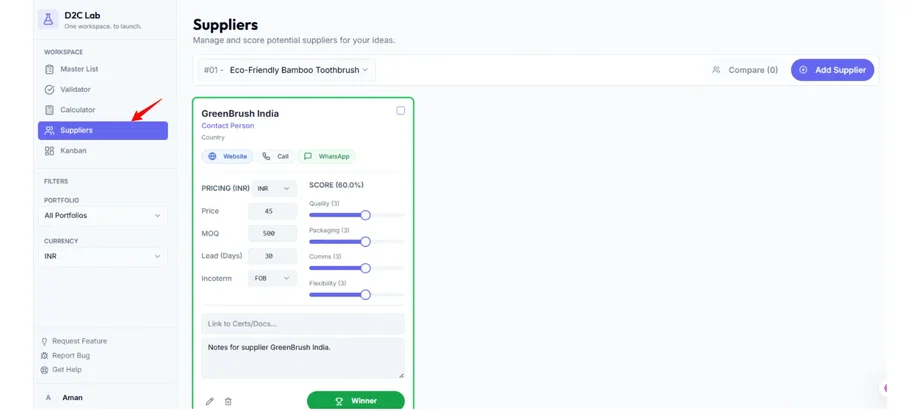
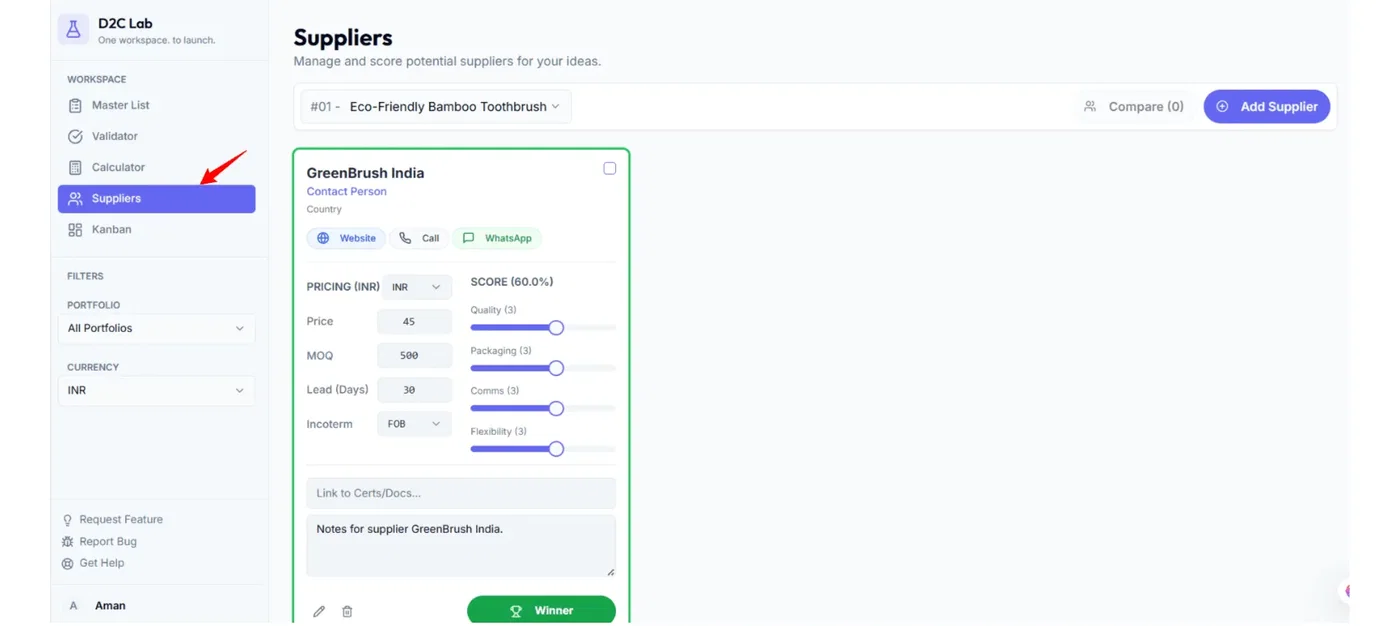
Go to Suppliers
Select the product idea you’re working on
Step 2 — Add a supplier (basic info first)
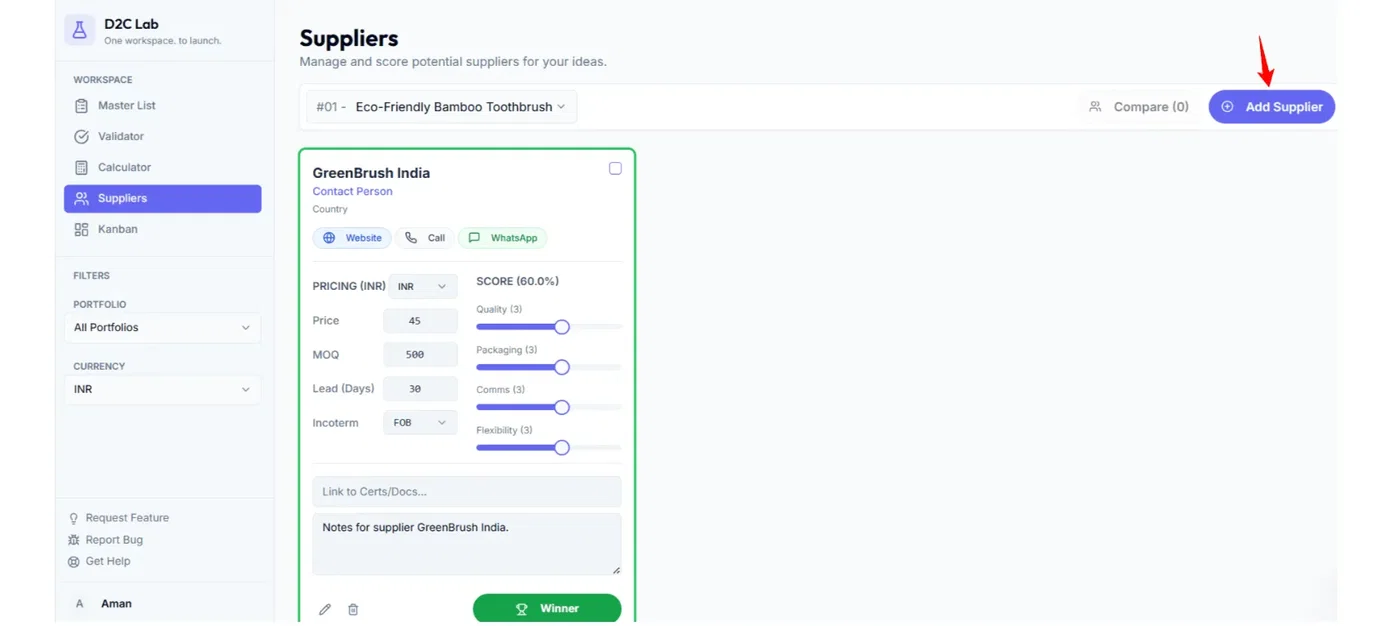
Click Add Supplier and fill the quick popup.
The popup collects only basic details:
Company name
Contact person
Phone
Address (optional)
Source URL (website/Alibaba/IndiaMART/etc.)
Click Save.
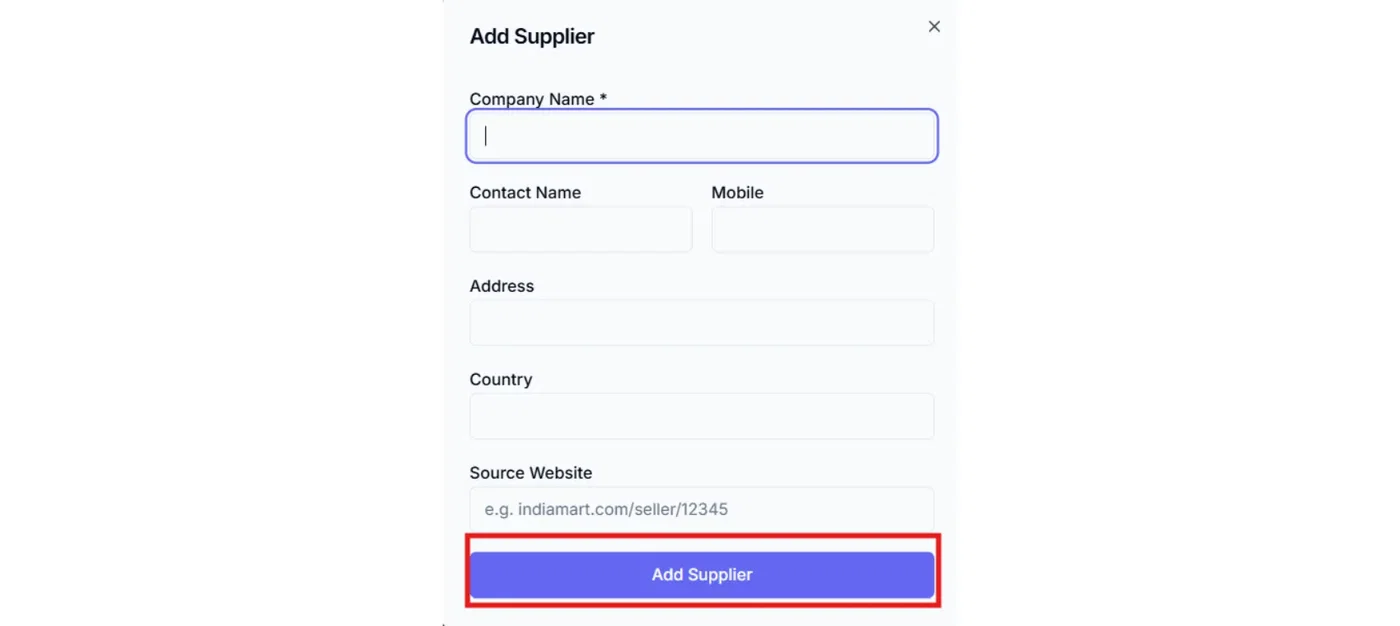
Result: A supplier card is created.
Step 3 — Add operational details (inline on the supplier card)
After the supplier card exists, edit the operational fields directly on the card:
Common fields:
Unit cost
MOQ
Lead time
Incoterms
Notes
Docs/Certificates link (if you store files elsewhere)
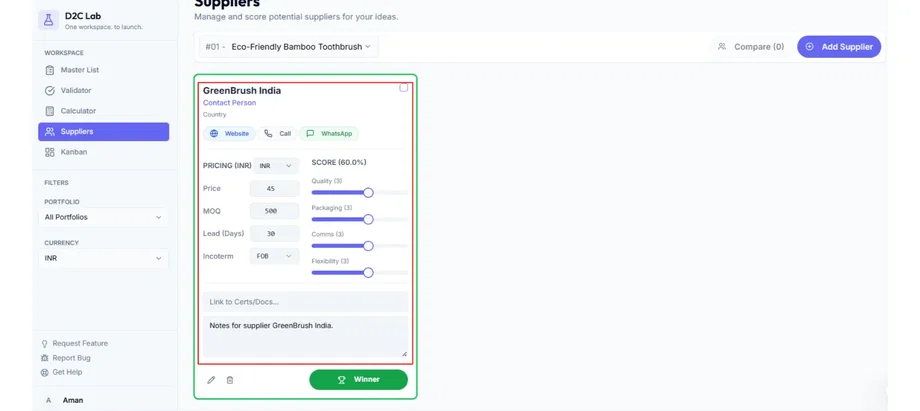
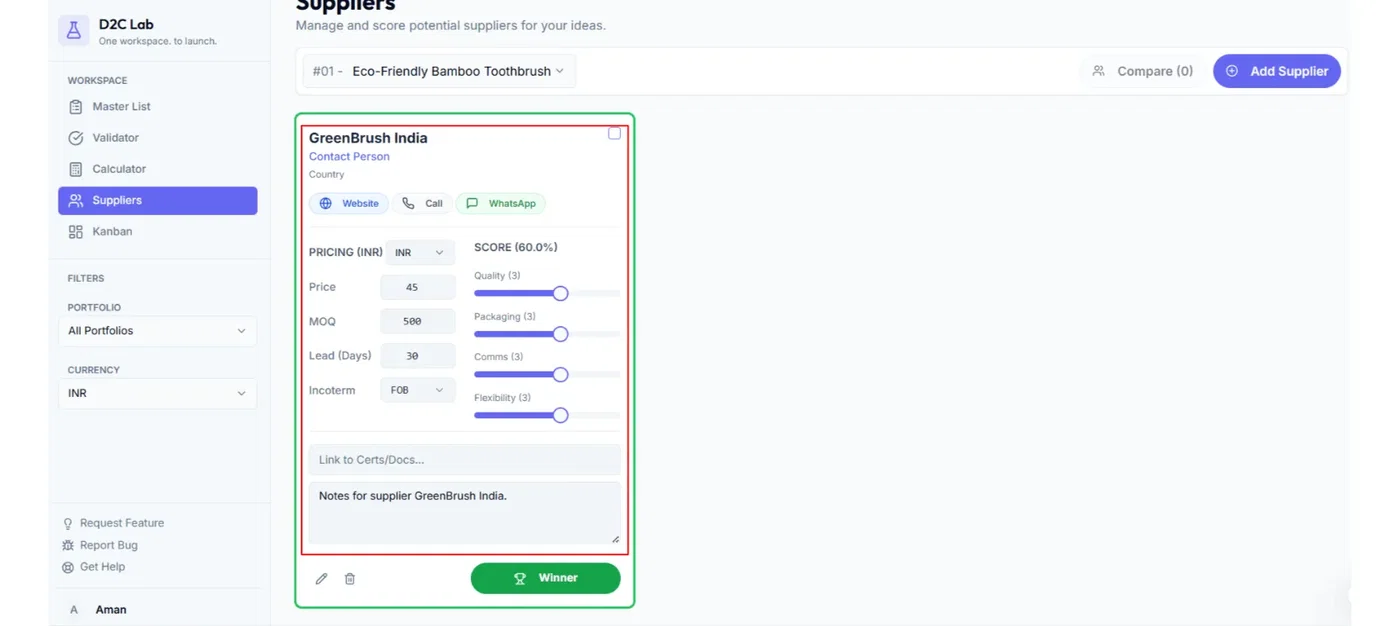
Tip: Add the unit cost + MOQ + lead time first. That’s enough to compare suppliers quickly.
Step 4 — Use quick actions (Website / Call / WhatsApp)
Supplier cards can include quick action buttons like:
Website
Call
WhatsApp
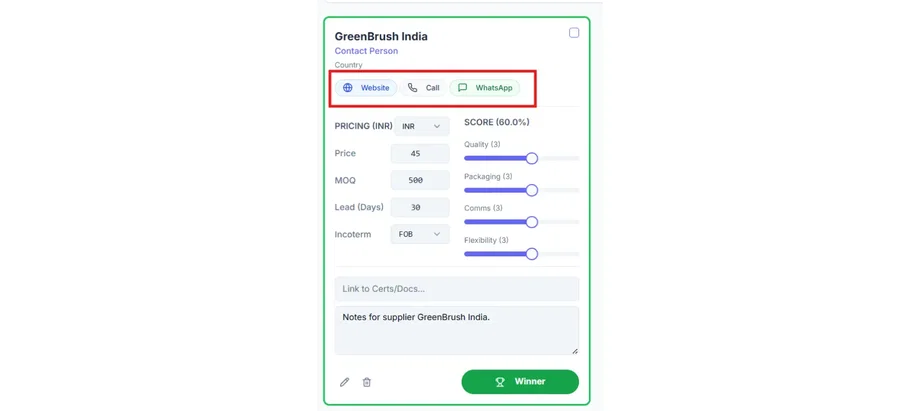
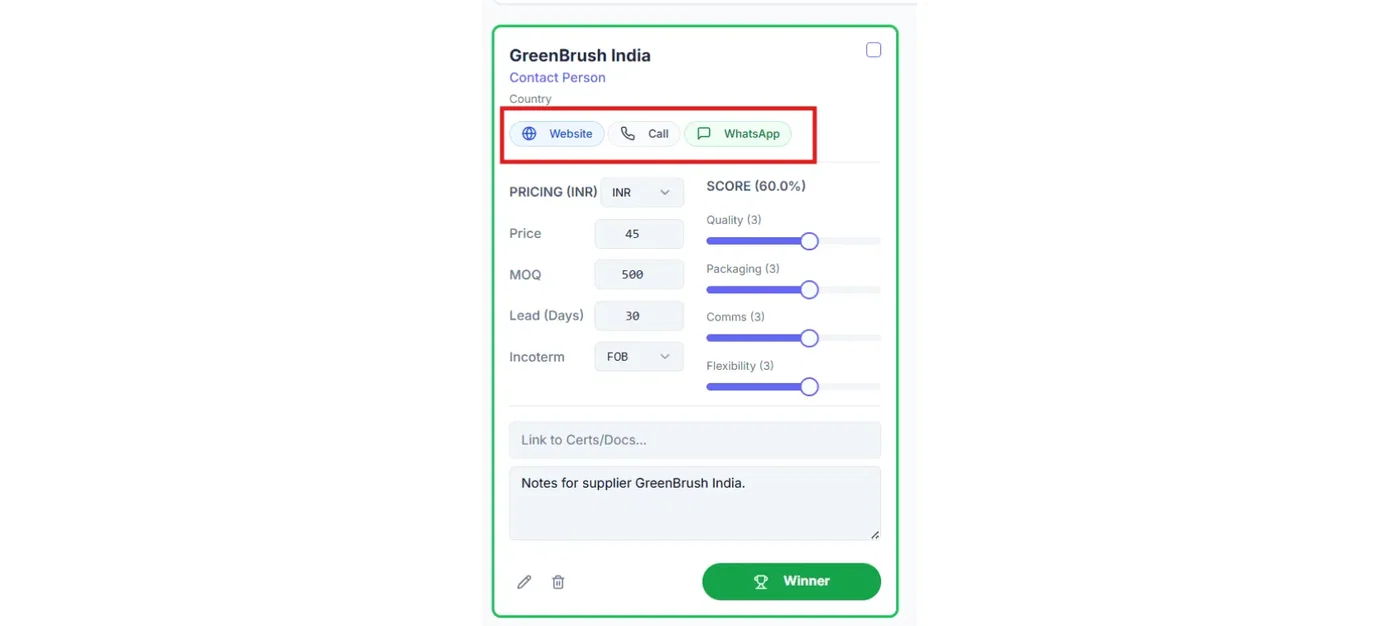
Use these to contact suppliers fast without digging through messages.
Step 5 — Score suppliers (out of 5)
Each supplier has scoring sliders out of 5.
Use scoring to rank options consistently (example factors):
price competitiveness
communication
lead time
quality confidence
reliability
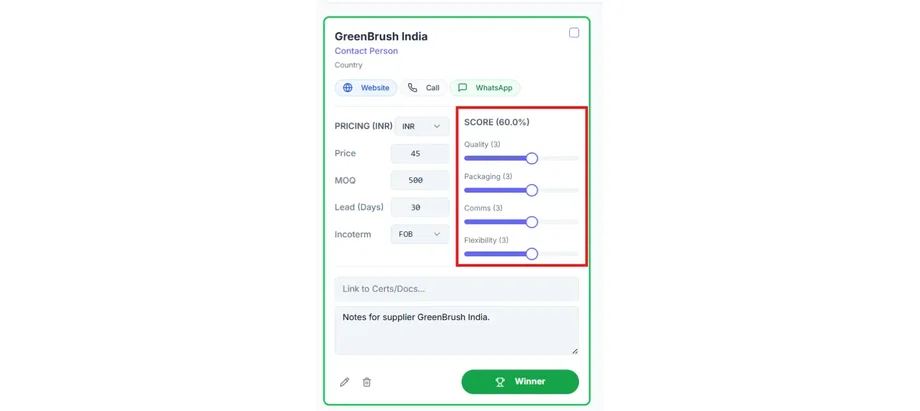
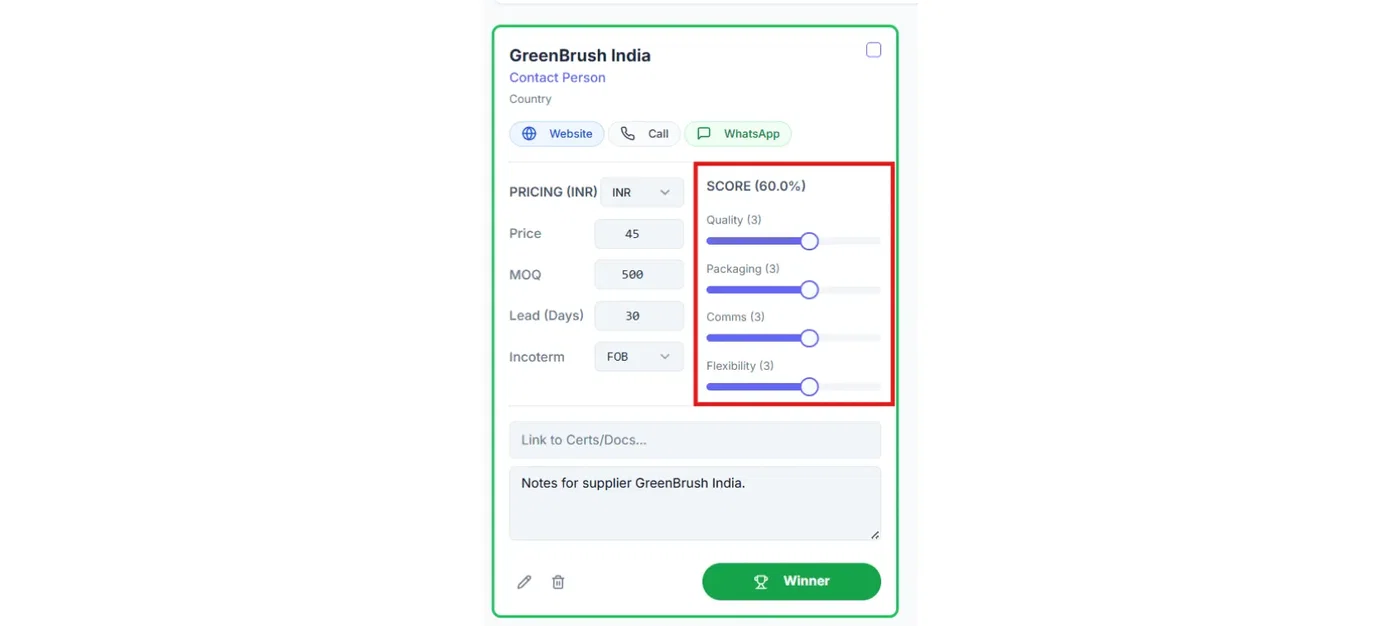
The goal is not “perfect scoring” — it’s quick clarity.
Step 6 — Compare suppliers (up to 3)
Use Compare when you have multiple suppliers.
How it works:
Select up to 3 suppliers
Click Compare
Review key fields side-by-side (cost, MOQ, lead time, score, terms)
This makes it easy to choose the best overall option, not just the cheapest.
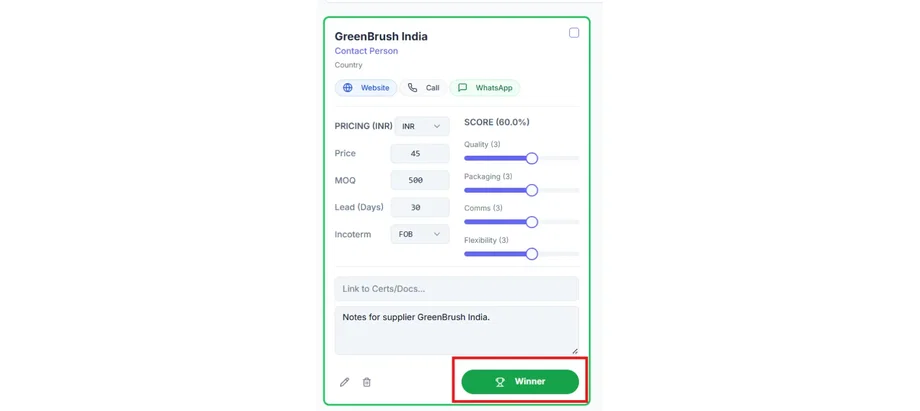
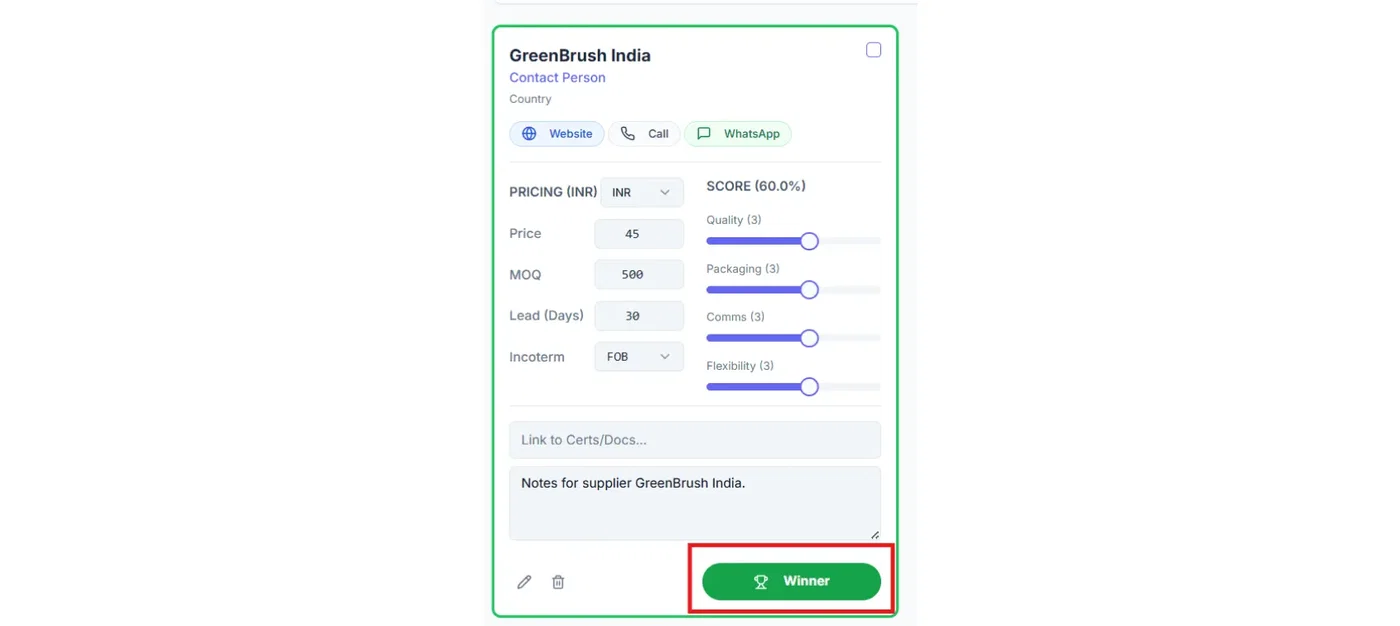
Step 7 — Choose a winner (toggleable)
When you’re ready, mark one supplier as Winner.
Winner state is shown with a green border and a trophy icon.
Winner selection is toggleable (select → deselect).
Important:
A product can move forward even if you haven’t selected a winner yet.
Currency (quick note)
Supplier pricing can be in a different currency than your selling price.
Best practice:
keep supplier currency consistent per supplier,
keep your selling price currency consistent per product.
What happens next
Once a supplier contact exists for a product:
a Kanban card is created automatically and starts in Sourcing.
Then you can track execution through:
Sourcing → Sampling → Negotiating → Production → QC → Shipping → Launched
Best practices
Add suppliers early, but don’t overfill every field on day one.
Store the latest quote in unit cost and use Notes for older quote history.
Use Compare + Winner to make decisions clear for the whole team.
Related articles
How Kanban starts automatically (supplier contact rule)
Choosing a winner (trophy / winner toggle)
Compare suppliers (up to 3)
Move through production stages (Kanban)